Categories: App Features
Support Tickets Feature Introduction
By:SIB Content Team
March 3, 2022
16 min read

SIB Content Team
The SourcinBox Content Team is dedicated to providing insightful, data-driven, and actionable content for dropshippers and eCommerce entrepreneurs. With expertise in product sourcing, supply chain management, branding, and fulfillment automation, we help online sellers navigate the ever-evolving world of cross-border eCommerce.
To improve the efficiency of dealing with after-sales problems, we developed the Support Tickets feature. Now I'm going to illustrate how to use this feature simply. This feature is used for after-sale issues, so the tickets can only be opened for orders
To improve the efficiency of dealing with after-sales problems, we developed the Support Tickets feature. Now I'm going to illustrate how to use this feature simply. This feature is used for after-sale issues, so the tickets can only be opened for orders
To improve the efficiency of dealing with after-sales problems, we developed the Support Tickets feature. Now I'm going to illustrate how to use this feature simply.
This feature is used for after-sale issues, so the tickets can only be opened for orders which you have paid for.
For example,
You want to open tickets for order #1004.
1. Open the SourcinBox Orders page.
2. Find order #1004, click the "Open Tickets" button.
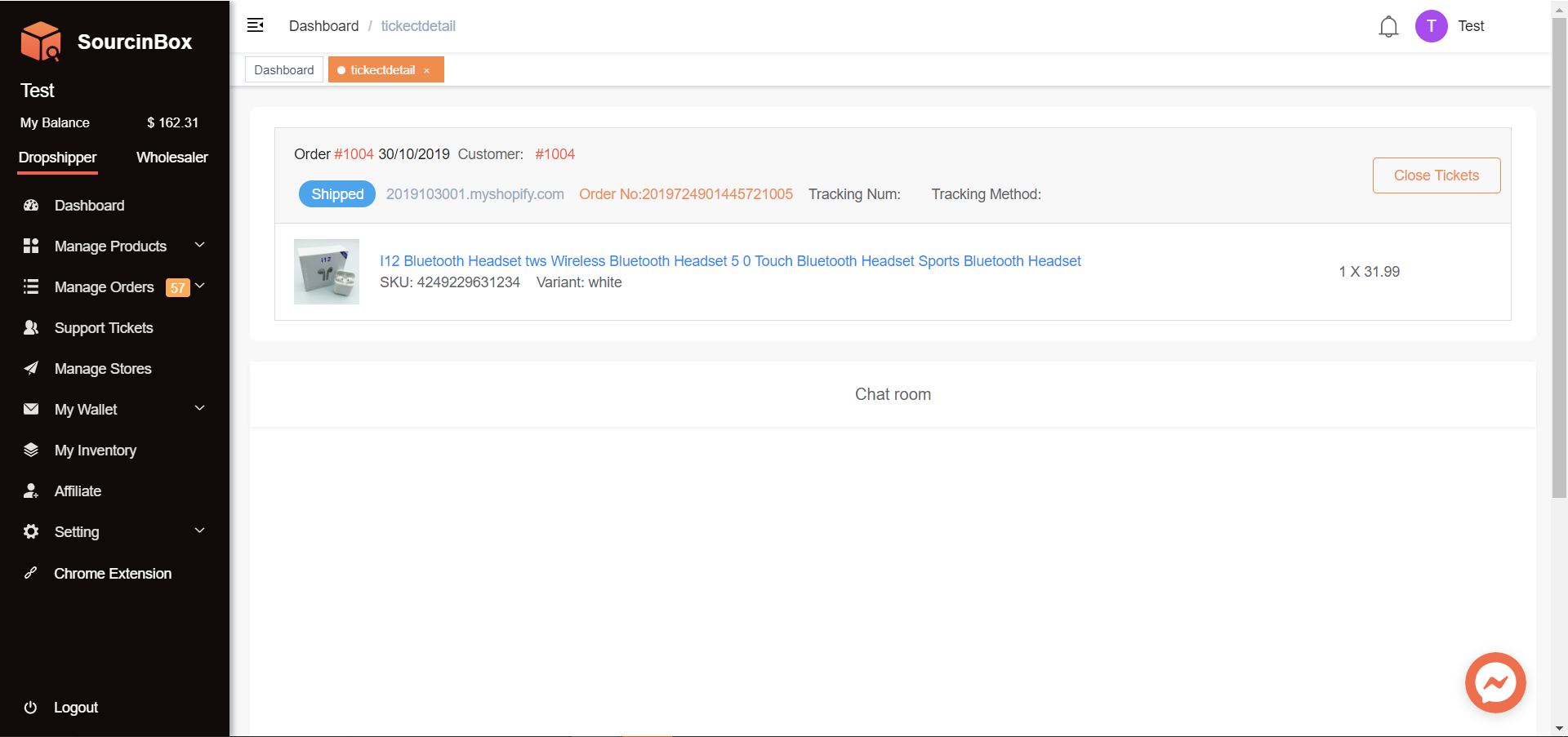
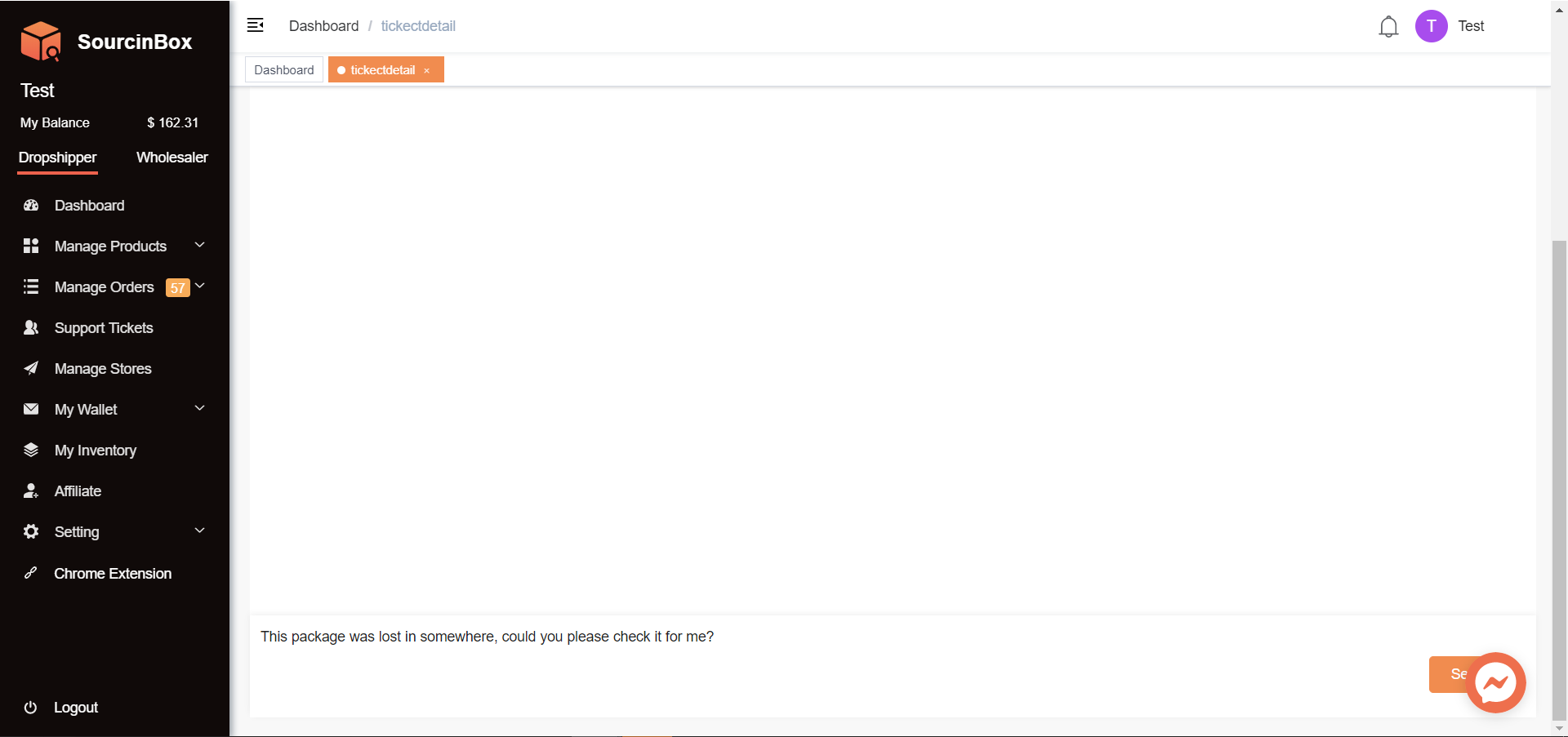
3. Here is the interface of support tickets. You could input the order problem description in the text field, and also you could copy and paste screenshots directly. Then tap the Enter key to send the message.
Share Article:




Ir para o Blog em Português →
Get the latest insights on the Latin American eCommerce market.
Start Your Online Business -For Free!
- Lower Price
- Faster Shipping
- Easier Order Fulfillment